- In your HubSpot account, click the settings icon Settings in the top navigation bar.
- In the left-hand sidebar menu, go to the General option.
- Click the Email tab.
- In the Set up section, click Manage email signatures.
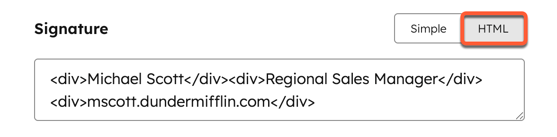
- Enter your signature in the text box. In the Simple editor, use the icons to format the text, insert a link or insert an image. Or click HTML and edit the HTML of your signature.

6. Click Save.
Note:
- Email clients handle custom HTML differently. Adding more styles increases the risk that they won’t display correctly when composing an email. Find out more about HubSpot’s best practices for creating an HTML email.
- If you want to customise the font in your signature, you can use the font-face attribute in a font tag in the HTML editor, but bear in mind that many fonts aren’t supported by email clients.