
- Open the App Store app on your device.
- Search for the HubSpot app and tap Get to download and install the app.
- Tap Open or launch the HubSpot app on your device.
- A message will appear saying something like ‘HubSpot’ wants to send you notifications. If you wish to receive them, you must enable push notifications. Find out more about how to enable notifications for the HubSpot app.
- Enter your HubSpot credentials and click Log in. If you use multiple HubSpot accounts, you’ll be asked to select the account you wish to access. Your device is now connected to your HubSpot account.
Set up the mobile app
In the app settings, you can manage your preferences and account settings, provide feedback on the mobile app, and get support from the HubSpot support team.
- Open the HubSpot app on your device.
- Tap Menu in the bottom navigation menu.
- At the bottom of the left-hand sidebar, tap the Settings icon.
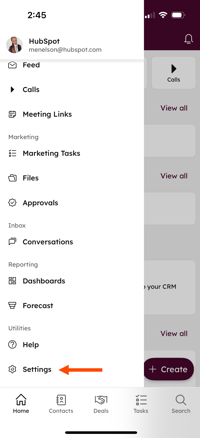
On the Settings screen:
- You can customise the keyboard, call settings, notifications and dark mode settings.
- You can also tap to enable the Device Lock setting. When you close or exit the HubSpot mobile app, the next time you open it you’ll be asked to verify your identity using the biometric features built into your mobile device or by entering your PIN.