
- In the top navigation bar, click on Breeze Assistant in the top right-hand corner.
- To send a chat, enter your prompt, click on a suggested prompt or use a saved prompt, and then click on the breezeSendIcon icon in the bottom right-hand corner. You can also start a chat from a Breeze project, to organise related chats into a group with shared instructions and context.
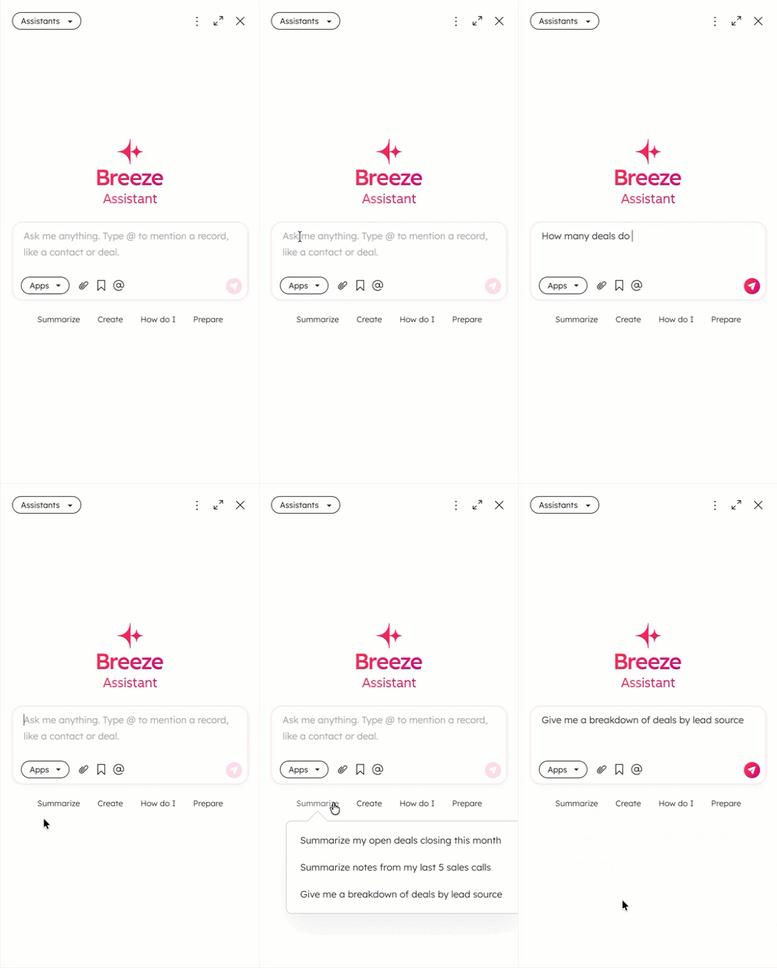
- To connect apps to the Breeze Assistant, click the Apps drop-down menu and tick the box next to each app you wish to include in your prompt. If you have never installed an app for the Breeze Assistant, you will be directed to the Breeze Marketplace. Find out more about using the Breeze Assistant with connected apps.
- To search across all apps, toggle the Use all apps as sources switch.
- To save your selected apps for future chats with the Breeze Assistant, so that those apps are searched first, toggle the Keep selection for future chats switch.

- You can include a file with your prompt to provide additional context. You can upload a new file or select an existing file from the file tool. Find out more about the supported file types and sizes when uploading files to the Breeze Assistant.
- To upload a file, click the attach icon and select Upload from computer. Then select a file.
- To add a file from the file tool, click the attach icon and select ‘Choose file’. Then select a file.
- To start a new chat, click the description icon in the top right-hand corner.
- To view previous chats, click the vertical menu icon in the top right-hand corner and select Chats.
- To use a prompt template or a favourite prompt, click the vertical menu icon in the top right-hand corner, select Prompts, and then select a prompt. Enter any additional information, and then click the send icon.
- To save your prompt as a favourite, hover over your message and click the star icon.
- Your response may include additional actions you can take, such as summarising an associated activity. Click an action (for example, Summarise) to send the prompt.
- To copy a response, click the Copy to clipboard icon located below the message.
- To provide feedback on a response from Breeze Assistant:
- If the response is what you expected, click the thumbsUpIcon thumbs-up icon.
- If the response is not what you expected, click the thumbsDownIcon thumbs-down icon.
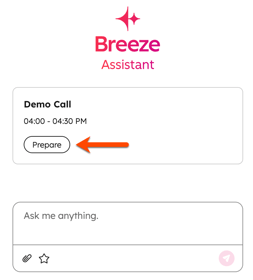
- If you have connected your calendar, you can prepare for upcoming meetings by clicking the Prepare button below the meeting name:
10. To hide the chat, click the X in the top right-hand corner.